All workflows
Every workflow, browsable.
Browse 32 public n8n workflow templates from workflows.diy. Filter, toggle view, or open any card on n8n.io.
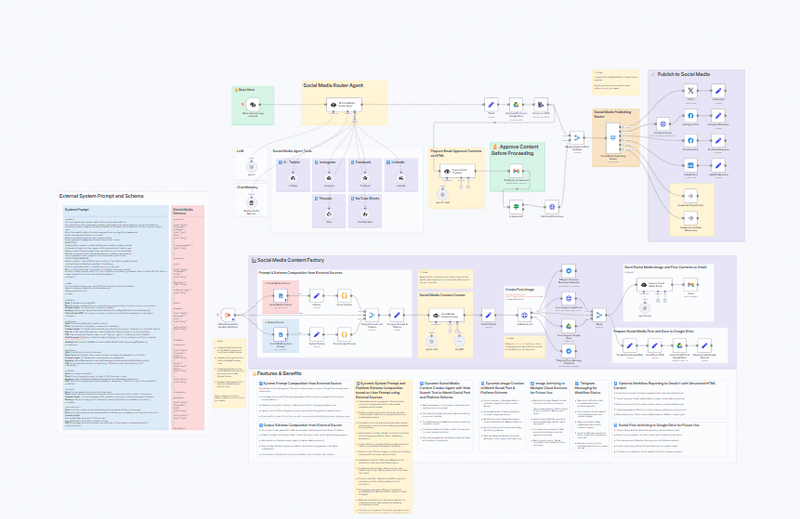
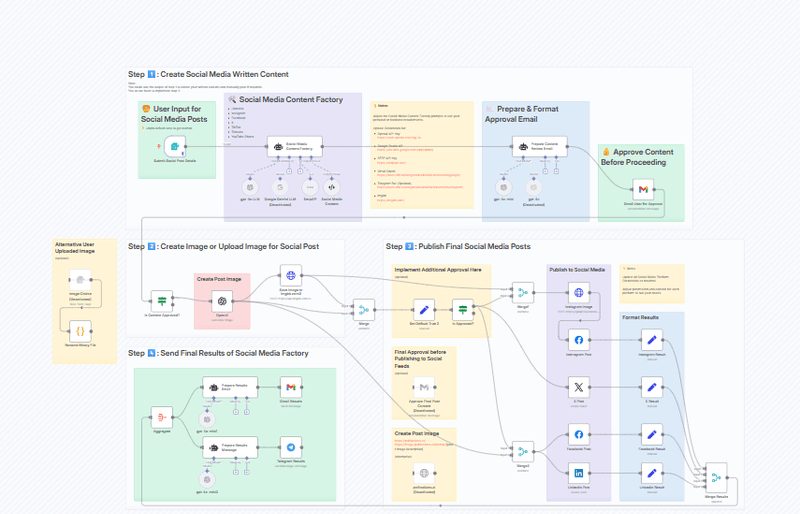
View on n8n.io creator profileAutomate Multi-Platform Social Media Content Creation with AI. Who is this for? . Social Media Managers and Digital Marketers seeking to streamline content production across 7+ platforms (X/Twitter, Instagram, LinkedIn, Facebook, TikTok, Threads, YouTube Shorts) using AI-powered automation. What problem does this solve? . Creating platform-optimized content at scale while maintaining brand consistency across multiple channels, reducing manual work by 80% through AI generation and automated publishing. What this workflow does . 1. AI Content Generation: - Uses GPT-4/Gemini to create platform-specific posts - Automatically generates hashtags, CTAs, and emoji placement - Supports image/video suggestions and image creation using OpenAI or Pollinations.ai - Uses SERP api to search for relavent content 2. Approval Workflow: - Sends formatted HTML emails for human review - Implements double-approval system with Gmail integration 3. Cross-Platform Publishing: - One-click deployment to: - Instagram/Facebook (via Graph API) - X/Twitter (Official API) - LinkedIn (Sales Navigator integration) Setup . 1. Credentials: - OpenAI API key - Google Gemini API - Social media platform tokens (X, LinkedIn, Facebook) - ImgBB for image hosting - Gmail - SERP API - Telegram 2. Configuration: - Update all "your-unique-id" placeholders in API nodes - Set email recipients in Gmail nodes - Customize AI prompts 3. Customization: - Adjust character limits per platform - Modify approval thresholds - Add/remove social platforms as needed How to customize . - Content Style: Edit prompt templates in the "Social Media Content Factory" agent node - Approval Process: Modify email templates - Analytics: Connect to Google Sheets for performance tracking - Image Generation: Switch between Pollinations.ai/DALL-E/Midjourney
-- Disclaimer: This workflow uses a community node
and therefore only works for self-hosted n8n users
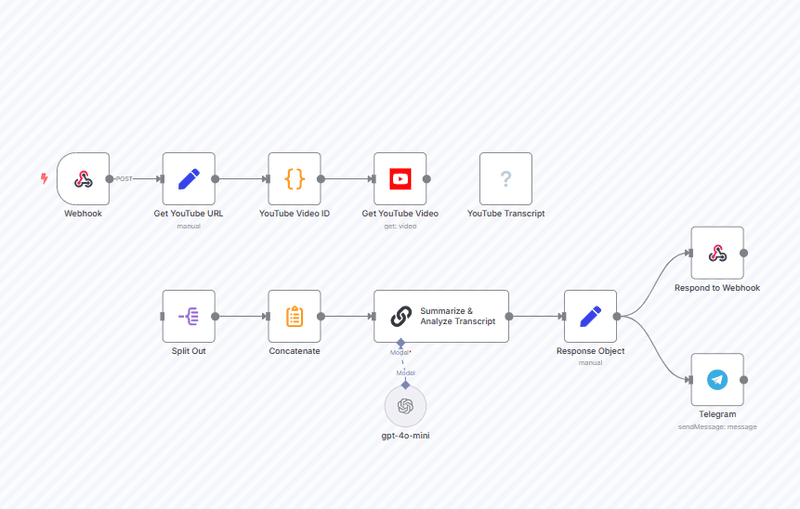
-- Transform YouTube videos
into comprehensive summaries and structured analysis
instantly. This n8n workflow automatically extracts,
processes, and analyzes video transcripts to deliver
clear, organized insights without watching the
entire video. Time-Saving Features 🚀 Instant
Processing Simply provide a YouTube URL and receive
a structured summary within seconds, eliminating the
need to watch lengthy videos. Perfect for research,
learning, or content analysis. 🧠 AI-Powered
Analysis Leverages GPT-4o-mini to analyze video
transcripts, organizing key concepts and insights
into a clear, hierarchical structure with main
topics and essential points. Smart Processing
Pipeline 📝 Automated Transcript Extraction -
Supports public YouTube video - Handles multiple URL
formats - Extracts complete video transcripts
automatically 🧠 Intelligent Content Organization -
Breaks down content into main topics - Highlights
key concepts and terminology - Maintains technical
accuracy while improving clarity - Structures
information logically with markdown formatting
Perfect For 📚 Researchers & Students Quick
comprehension of educational content and lectures
without watching entire videos. 💼 Business
Professionals Efficient analysis of industry talks,
presentations, and training materials. 🎯 Content
Creators Rapid research and competitive analysis of
video content in your niche. Technical
Implementation ⚙️ Workflow Components - Webhook
endpoint for URL submission - YouTube API
integration for video details - Transcript
extraction system - GPT-4 powered analysis engine -
Telegram notification system (optional) Transform
your video content consumption with an intelligent
system that delivers structured, comprehensive
summaries while saving hours of viewing time.
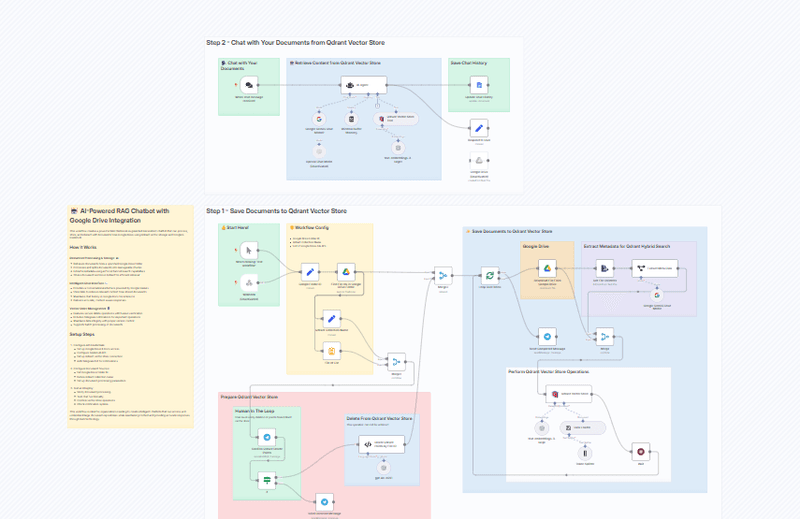
🤖 AI-Powered RAG Chatbot with Google Drive Integration. This workflow creates a powerful RAG (Retrieval-Augmented Generation) chatbot that can process, store, and interact with documents from Google Drive using Qdrant vector storage and Google's Gemini AI. How It Works. Document Processing & Storage 📚. - Retrieves documents from a specified Google Drive folder - Processes and splits documents into manageable chunks - Extracts metadata using AI for enhanced search capabilities - Stores document vectors in Qdrant for efficient retrieval Intelligent Chat Interface 💬. - Provides a conversational interface powered by Google Gemini - Uses RAG to retrieve relevant context from stored documents - Maintains chat history in Google Docs for reference - Delivers accurate, context-aware responses Vector Store Management 🗄️. - Features secure delete operations with human verification - Includes Telegram notifications for important operations - Maintains data integrity with proper version control - Supports batch processing of documents Setup Steps. 1. Configure API Credentials: - Set up Google Drive & Docs access - Configure Gemini AI API - Set up Qdrant vector store connection - Add Telegram bot for notifications - Add OpenAI Api Key to the 'Delete Qdrant Points by File ID' node 2. Configure Document Sources: - Set Google Drive folder ID - Define Qdrant collection name - Set up document processing parameters 3. Test and Deploy: - Verify document processing - Test chat functionality - Confirm vector store operations - Check notification system This workflow is ideal for organizations needing to create intelligent chatbots that can access and understand large document repositories while maintaining context and providing accurate responses through RAG technology.
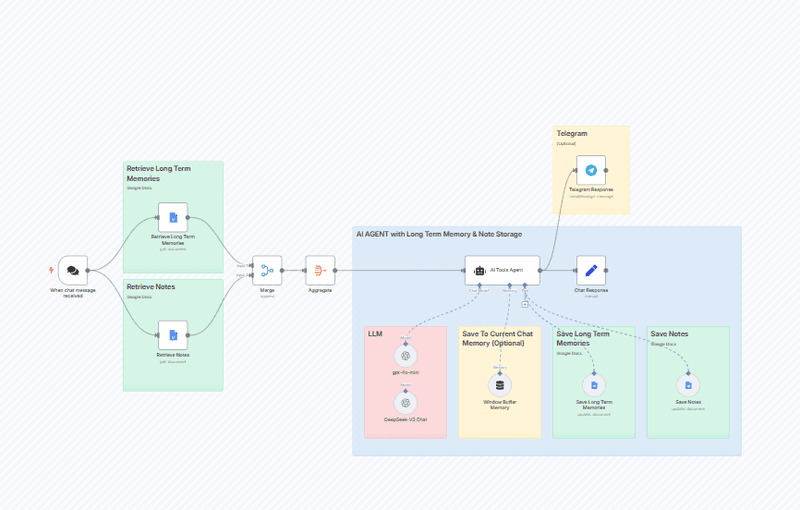
This workflow template creates an AI agent chatbot with long-term memory and note storage using Google Docs and Telegram integration. Google Docs Integration 📄. n8n Google Docs Node Setup Google Credentials Telegram Integration 💬. Telegram Setup Core Features 🌟. AI Agent Integration 🤖 - Implements a sophisticated AI agent with memory management capabilities - Uses GPT-4o-mini and DeepSeek models for intelligent conversation handling - Maintains context awareness through session management Memory System 🧠 - Long-term memory storage using Google Docs - Separate note storage system for specific information - Window buffer memory for maintaining conversation context - Intelligent memory retrieval and storage mechanisms Communication Interface 💬 - Telegram integration for message handling - Real-time message processing and response generation Technical Components 🔩. Memory Architecture 📚 - Dual storage system separating memories from notes - Automated memory retrieval before each interaction - Structured memory saving with timestamps AI Models 🤖 - Primary GPT-4o-mini mini model for general interactions - DeepSeek-V3 Chat for specialized processing - Custom agent system with tool integration Storage Integration 💾 - Google Docs integration for persistent storage - Separate document management for memories and notes - Automated document updates and retrievals
Social Media Content Publishing Factory for Streamlined Content Creation Across Platforms. Who is this for?. This workflow is designed for content creators, social media managers, and marketing teams who need to efficiently create and publish content across multiple social media platforms. It's perfect for businesses looking to maintain a consistent presence across X (Twitter), Instagram, Facebook, LinkedIn, Threads, and YouTube Shorts without spending hours crafting platform-specific content manually. What problem is this workflow solving?. Creating tailored content for different social media platforms is time-consuming and requires understanding each platform's unique requirements and audience expectations. This workflow solves the challenge of: - Maintaining consistent messaging across platforms while respecting platform-specific formats - Generating optimized content that follows best practices for each platform - Creating accompanying visuals without graphic design skills - Streamlining the approval process before publishing - Reducing the time spent on repetitive content creation tasks What this workflow does. This automated content factory takes your content idea and transforms it into platform-optimized posts for all major social media channels. The workflow: 1. Accepts your content idea or topic through a chat interface 2. Leverages AI to generate tailored content for each platform (X/Twitter, Instagram, Facebook, LinkedIn, Threads, YouTube Shorts) 3. Creates appropriate images using AI image generation 4. Sends content for approval via email before publishing 5. Publishes approved content to selected platforms 6. Maintains chat memory to improve future content generation Setup. 1. Connect your social media platform credentials (X/Twitter, Instagram, Facebook, LinkedIn) 2. Set up your email account for the approval process 3. Configure your OpenAI API key for AI content generation 4. Update the image generation service credentials (Pollinations.ai is used by default) 5. Customize the system prompts and schemas in the Google Docs nodes with your brand voice and content requirements How to customize this workflow to your needs. - Modify the system prompts in the Google Docs nodes to match your brand voice and content strategy - Adjust the social media schemas to include specific fields relevant to your content - Update the approval process to include additional stakeholders if needed - Add or remove social media platforms based on your marketing strategy - Customize the image generation prompts to better match your visual branding - Integrate with your existing content calendar or CRM systems This workflow eliminates the need to manually craft different versions of the same content for each platform, saving hours of work while ensuring your social media presence remains consistent and optimized for maximum engagement.
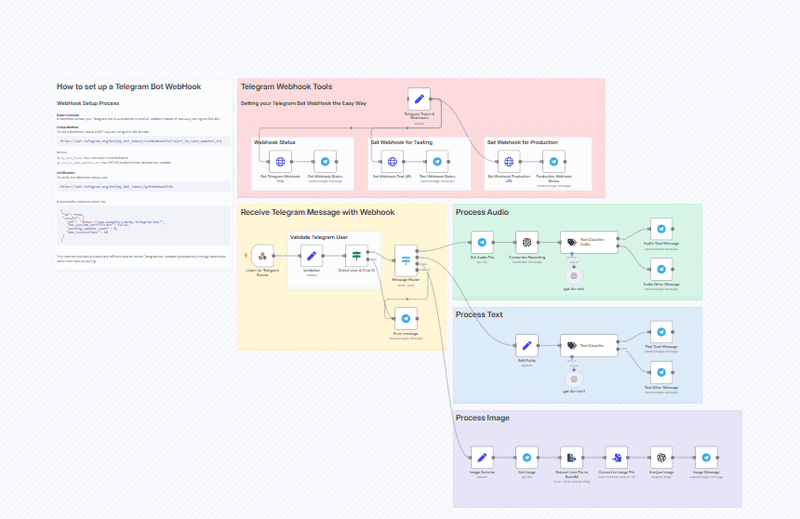
🤖 This n8n workflow creates an intelligent Telegram bot that processes multiple types of messages and provides automated responses using AI capabilities. The bot serves as a personal assistant that can handle text, voice messages, and images through a sophisticated processing pipeline. Core Components. Message Reception and Validation 📨 - ⚙️ Implements webhook-based message reception for real-time processing - 🔑 Features a robust user validation system that verifies sender credentials - 🔄 Supports both testing and production webhook endpoints for development flexibility Message Processing Pipeline ⚡ - ⚙️ Uses a smart router to detect and categorize incoming message types - 📝 Processes three main message formats: - 💬 Text messages - 🎤 Voice recordings - 🖼️ Images with captions AI Integration 🧠 - 🤖 Leverages OpenAI's GPT-4 for message classification and processing - 🗣️ Incorporates voice transcription capabilities for audio messages - 👁️ Features image analysis using GPT-4 Vision API for processing visual content Technical Architecture. Webhook Management 🔗 - 🌐 Maintains separate endpoints for testing and production environments - 📊 Implements automatic webhook status monitoring - ⚡ Provides real-time webhook configuration updates Error Handling ⚠️ - 🔍 Features comprehensive error detection and reporting - ⚙️ Implements fallback mechanisms for unprocessable messages - 💬 Provides user feedback for failed operations Message Classification System 🗂️ - 🏷️ Categorizes incoming messages into tasks and general conversation - 🔄 Implements separate processing paths for different message types - 🧠 Maintains context awareness across message processing Security Features. User Authentication 🔒 - ✅ Validates user credentials against predefined parameters - 👤 Implements first name, last name, and user ID verification - 🚫 Restricts access to authorized users only Response System. Intelligent Responses💡 - 🤖 Generates contextual responses based on message classification
Transform your local N8N instance into a powerful chat interface using any local & private Ollama model, with zero cloud dependencies ☁️. This workflow creates a structured chat experience that processes messages locally through a language model chain and returns formatted responses 💬. How it works ⚙️. - 📨 Chat messages trigger the workflow - 🧠 Messages are processed through Llama 3.2 via Ollama (or any other Ollama compatible model) - 📊 Responses are formatted as structured JSON - ⚡ Error handling ensures robust operation Set up steps 🛠️. - 💻 Install N8N and Ollama - ⚙️ Download Ollama 3.2 model (or other model) - 🔑 Configure Ollama API credentials - ✨ Import and activate workflow This template provides a foundation for building AI-powered chat applications while maintaining full control over your data and infrastructure 🚀.
Generate SEO-Optimized WordPress Content with Perplexity Research. Who is This For?. This workflow is ideal for content creators, marketers, and businesses looking to streamline the creation of SEO-optimized blog posts for WordPress. It is particularly suited for professionals in the AI consulting and workflow automation industries. --- What Problem Does This Workflow Solve?. Creating high-quality, SEO-friendly blog posts can be time-consuming and challenging, especially when trying to balance research, formatting, and publishing. This workflow automates the process by integrating research capabilities, AI-driven content creation, and seamless WordPress publishing. It reduces manual effort while ensuring professional-grade output. --- What This Workflow Does. 1. Research: Gathers detailed insights from Perplexity AI based on user-provided queries. 2. Content Generation: Uses OpenAI models to create structured blog posts, including titles, slugs, meta descriptions, and HTML content optimized for WordPress. 3. Image Handling: Automatically fetches and uploads featured images to WordPress posts. 4. Publishing: Drafts the blog post directly in WordPress with all necessary formatting and metadata. 5. Notification: Sends a success message via Telegram upon completion. --- Setup Guide. 1. Prerequisites: - A WordPress account with API access. - OpenAI API credentials. - Perplexity AI API credentials. - Telegram bot credentials for notifications. 2. Steps: - Import the workflow into your n8n instance. - Configure API credentials for WordPress, OpenAI, Perplexity AI, and Telegram. - Customize the form trigger to define your research query. - Test the workflow using sample queries to ensure smooth execution. --- How to Customize This Workflow to Your Needs. - Modify the research query prompt in the "Form Trigger" node to suit your industry or niche. - Adjust content generation guidelines in the "Copywriter AI Agent" node for specific formatting preferences. - Replace the image URL in the "Set Image URL" node with your own source or dynamic image selection logic.
This n8n workflow demonstrates multiple ways to harness DeepSeek's AI models in your automation pipeline! 🌟 Core Features. Multiple Integration Methods 🔗 - Local deployment using Ollama for DeepSeek-R1 - Direct API integration with DeepSeek Chat V3 - Conversational agent with memory buffer - HTTP request implementation with both raw and JSON formats Model Options 🧠 - DeepSeek Chat V3 for general conversation - DeepSeek-R1 for advanced reasoning - Memory-enabled agent for persistent context Quick Setup 🛠️. API Configuration - Base URL: https://api.deepseek.com - Get your API key from platform.deepseek.com/api_keys Local Setup 💻 - Install Ollama for local deployment - Set up DeepSeek-R1 via Ollama - Configure local credentials in n8n Implementation Details 🔩. Conversational Agent - Window Buffer Memory for context - Customizable system messages - Built-in error handling with retries API Endpoints 🌐 - Chat completions for V3 and R1 models - OpenAI API format compatibles
Transform simple queries into comprehensive, well-structured content with this n8n workflow that leverages Perplexity AI for research and GPT-4 for content transformation. Create professional blog posts and HTML content automatically while maintaining accuracy and depth. Intelligent Research & Analysis 🚀 Automated Research Pipeline - Harnesses Perplexity AI's advanced research capabilities - Processes complex topics into structured insights - Delivers comprehensive analysis in minutes instead of hours 🧠 Smart Content Organization - Automatically structures content with clear hierarchies - Identifies and highlights key concepts - Maintains technical accuracy while improving readability - Creates SEO-friendly content structure Content Transformation Features 📝 Dynamic Content Generation - Converts research into professional blog articles - Generates clean, responsive HTML output - Implements proper semantic structure - Includes metadata and categorization 🎨 Professional Formatting - Responsive Tailwind CSS styling - Clean, modern HTML structure - Proper heading hierarchy - Mobile-friendly layouts - Blockquote highlighting for key insights Perfect For 📚 Content Researchers Save hours of manual research by automating the information gathering and structuring process. ✍️ Content Writers Focus on creativity while the workflow handles research and technical formatting. 🌐 Web Publishers Generate publication-ready HTML content with modern styling and proper structure. Technical Implementation ⚡ Workflow Components - Webhook endpoint for query submission - Perplexity AI integration for research - GPT-4 powered content structuring - HTML transformation engine - Telegram notification system (optional) Transform your content creation process with an intelligent system that handles research, writing, and formatting while you focus on strategy and creativity.
Empower Your AI Chatbot with Long-Term Memory and Dynamic Tool Routing. This n8n workflow equips your AI agent with long-term memory and a dynamic tools router, enabling it to provide intelligent, context-aware responses while managing tasks across multiple tools. By combining persistent memory and modular task routing, this workflow makes your AI smarter, more efficient, and highly adaptable. --- 👥 Who Is This For?. 1. AI Developers & Automation Enthusiasts: Integrate advanced AI features like long-term memory and task routing without coding expertise. 2. Businesses & Teams: Automate tasks while maintaining personalized, context-aware interactions. 3. Customer Support Teams: Improve user experience with chatbots that remember past interactions. 4. Marketers & Content Creators: Streamline communication across platforms like Gmail and Telegram. 5. AI Researchers: Experiment with persistent memory and multi-tool integration. --- 🚀 What Problem Does This Solve?. This workflow simplifies the creation of intelligent AI systems that retain memory, manage tasks dynamically, and automate notifications across tools like Gmail and Telegram—saving time and improving efficiency. --- 🛠️ What This Workflow Does. - Save & Retrieve Memories: Uses Google Docs for long-term storage to recall past interactions or user preferences. - Dynamic Task Routing: Routes tasks to the right tools (e.g., saving/retrieving memories or sending notifications). - AI-Powered Context Understanding: Combines OpenAI GPT-based short-term memory with long-term memory for smarter responses. - Multi-Channel Notifications: Sends updates via Gmail or Telegram. --- 🔩 Setup. 1. API Credentials: - Connect to OpenAI (AI processing), Google Docs (memory storage), Gmail/Telegram (notifications). 2. Customize Parameters: - Adjust the AI agent's system message for your use case. - Define task-routing rules in the tools router node. 3. Test & Deploy: - Verify memory saving/retrieval, task routing, and notification delivery. --- ✨ How to Customize. - Modify the system message in the OpenAI node to tailor your agent’s behavior. - Add or adjust routing rules for additional tools. - Update notification settings to match your communication preferences.
MCP AI Chatbot using Brave Search. Disclaimer: This
workflow only works with local installations of n8n
because it uses a community MCP node
Who is this for?. This
workflow is ideal for developers, automation
enthusiasts, and businesses looking to integrate
AI-powered chat capabilities into their workflows.
It's particularly useful for those leveraging Brave
Search and MCP tools to enhance user interactions
and streamline data retrieval. What problem is this
workflow solving?. This workflow addresses the
challenge of creating an intelligent chatbot that
can process user queries, execute searches using
Brave Search, and provide responses enriched by AI.
It simplifies the integration of multiple tools into
a cohesive system, saving time and effort for users
who need a robust conversational AI solution. What
this workflow does. - Listens for incoming chat
messages using the Chat Trigger node. - Processes
user input with an AI Agent powered by GPT-4o. -
Retrieves relevant tools using the MCP Get Brave
Tools node. - Executes specific search queries via
the MCP Execute Brave Search node. - Maintains
short-term memory of conversations with the Simple
Memory node. Setup. 1. Prerequisites: - Access to an
n8n instance (self-hosted). - API credentials for
OpenAI and MCP Client Tools. - Brave Search API key.
2. Steps: - Import the workflow JSON into your n8n
instance. - Configure the API credentials for OpenAI
and MCP Client Tools in their respective nodes. -
Set up your Brave Search API key in the MCP nodes.
https://brave.com/search/api/
3. Testing: - Use the built-in chat interface to
send test messages. - Verify that the chatbot
processes queries and returns results as expected.
How to customize this workflow to your needs. -
Modify the AI Agent's prompt settings to tailor
responses to your specific use case. - Adjust the
memory buffer in the Simple Memory node to retain
more or less conversational context. - Replace or
add additional tools in the MCP nodes to expand
functionality.
🔍 This n8n workflow integrates Tavily's search and
extract APIs with AI summarization capabilities to
process web content efficiently. Quick Setup. 1. Get
your Tavily API key from
https://app.tavily.com/home
2. Replace tvly-YOURAPIKEY in the
"Tavily API Key" node 3. Connect your OpenAI
credentials to the "OpenAI Chat Model" node 4.
Deploy the workflow and start the chat trigger Core
Features. Search & Extract 🎯 - Intelligent web
searching with relevance filtering - Automated
content extraction from top results - AI-powered
content summarization in markdown format User
Interaction 💬 - Chat-based search topic input -
Real-time processing pipeline - Structured markdown
output The workflow demonstrates practical
implementation of Tavily's API endpoints while
handling the complete process from search to
summarization in a single automated pipeline.
🎬 YouTube Video AI Agent Workflow. This n8n workflow template allows you to interact with an AI agent that extracts details and the transcript of a YouTube video using a provided video ID. Once the details and transcript are retrieved, you can chat with the AI agent to explore or analyze the video's content in a conversational and insightful manner. 🌟 How the Workflow Works. 1. ➡️ Input Video ID: The user provides a YouTube video ID as input to the workflow. 2. 📄 Data Retrieval: The workflow fetches essential details about the video (e.g., title, description, upload date) and retrieves its transcript using YouTube's Data API and additional tools for transcript extraction. 3. 🤖 AI Agent Interaction: The extracted details and transcript are processed by an AI-powered agent. Users can then ask questions or engage in a conversation with the agent about the video's content, such as: - Summarizing the transcript. - Analyzing key points. - Clarifying specific sections. 4. 💬 Dynamic Responses: The AI agent uses natural language processing (NLP) to generate contextual and accurate responses based on the video data, ensuring a smooth and intuitive interaction. --- 🚀 Use Cases. - 📊 Content Analysis: Quickly analyze long YouTube videos by querying specific sections or extracting summaries. - 📚 Research and Learning: Gain insights from educational videos or tutorials without watching them entirely. - ✍️ Content Creation: Repurpose transcripts into blogs, social media posts, or other formats efficiently. - 🔀 Accessibility: Provide an alternative, text-based way to interact with video content for users who prefer reading over watching. --- 🛠️ Resources for Getting Started. - Google Cloud Console (for API setup): Visit Google Cloud's Get Started Guide to configure your API access. - YouTube Data API Key Setup: Follow this guide to create and manage your YouTube Data API key. - Install n8n Locally: Refer to this installation guide for setting up n8n on your local machine. --- ✨ Sample Prompts. "Tell me about this YouTube video with id: JWfNLFgV0" "Can you provide a list of key takeaways from this video with id: [youtube-video-id]?"
Automate Audio Transcription, AI Summarization, and Google Drive Storage. Who is this for? . Content Teams, Researchers, and Administrators who need to automatically process voice memos, meeting recordings, or interview audio into structured, searchable documents. What problem does this solve? . Eliminates manual transcription work by automatically converting audio files into organized text documents with AI analysis, while maintaining human oversight through approval workflows. What this workflow does . 1. Smart Audio Processing: - Triggers when new .m4a files appear in Google Drive - Uses OpenAI's Whisper for accurate transcription - Implements dual-format reporting (JSON + Markdown) 2. Human Oversight (optional): - Requires email approval before processing - 45-minute response window with escalation options 3. AI-Powered Analysis: - Generates structured JSON reports with: - Key points & action items - Sentiment analysis - Technical terminology glossary - Creates Markdown versions for easy reading 4. Document Management: - Stores raw transcripts + reports in Google Drive - Automatic file naming with timestamps - Sends completion alerts via Email/Telegram Workflow visualization showing audio file processing path Setup . 1. Credentials Needed: - Google Drive API access - OpenAI API key (GPT-4o-mini) - Gmail & Telegram integrations 2. Configuration: - Set your Google Drive folder ID in 3 nodes - Update email addresses in Gmail nodes - Customize approval timeout in "Gmail User for Approval" 3. Customization Points: - File extension filters (.m4a) - AI report templates and prompts - Notification channels (Email/Telegram) How to customize . - Approval Process: Add SMS/Teams notifications via additional nodes - File Types: Modify filter node for .mp3/.wav support - Analysis Depth: Adjust GPT-4 prompts in "Summarize to JSON" nodes - Storage: Connect to Notion/Airtable instead of Google Drive
Description. This workflow automates document processing using LlamaParse to extract and analyze text from various file formats. It intelligently processes documents, extracts structured data, and delivers actionable insights through multiple channels. How It Works. Document Ingestion & Processing 📄. - Monitors Gmail for incoming attachments or accepts documents via webhook - Validates file formats against supported LlamaParse extensions - Uploads documents to LlamaParse for advanced text extraction - Stores original documents in Google Drive for reference Intelligent Document Analysis 🧠. - Automatically classifies document types (invoices, reports, etc.) - Extracts structured data using customized AI prompts - Generates comprehensive document summaries with key insights - Converts unstructured text into organized JSON data Invoice Processing Automation 🧾. - Extracts critical invoice details (dates, amounts, line items) - Organizes financial data into structured formats - Calculates tax breakdowns, subtotals, and payment information - Maintains detailed records for accounting purposes Multi-Channel Delivery 📲. - Saves extracted data to Google Sheets for tracking and analysis - Sends concise summaries via Telegram for immediate review - Creates searchable document archives in Google Drive - Updates spreadsheets with structured financial information Setup Steps. Configure API Credentials 🔑. - Set up LlamaParse API connection - Configure Gmail OAuth for email monitoring - Set up Google Drive and Sheets integrations - Add Telegram bot credentials for notifications Customize AI Processing ⚙️. - Adjust document classification parameters - Modify extraction templates for specific document types - Fine-tune summary generation prompts - Customize invoice data extraction schema Test and Deploy 🚀. - Test with sample documents of various formats - Verify data extraction accuracy - Confirm notification delivery - Monitor processing pipeline performance
💡🌐 Essential Multipage Website Scraper with Jina.ai. Use responsibly and follow local rules and regulations This N8N workflow enables automated multi-page website scraping using Jina.ai's powerful web scraping capabilities, with seamless integration to Google Drive for content storage. Here's how it works: Main Features. The workflow automatically scrapes multiple pages from a website's sitemap and saves each page's content as a separate Google Drive document. Key Components. Input Configuration - Starts with a sitemap URL (default: https://ai.pydantic.dev/sitemap.xml) - Processes the sitemap to extract individual page URLs - Includes filtering options to target specific topics or pages Scraping Process - Uses Jina.ai's web scraper to extract content from each URL - Converts webpage content into clean markdown format - Extracts page titles automatically for document naming Storage Integration - Creates individual Google Drive documents for each scraped page - Names documents using the format "URL - Page Title" - Saves content in markdown format for better readability Usage Instructions. 1. Set your target website's sitemap URL in the "Set Website URL" node 2. Configure the "Filter By Topics or Pages" node to select specific content 3. Adjust the "Limit" node (default: 20 pages) to control batch size 4. Connect your Google Drive account 5. Run the workflow to begin automated scraping Additional Features. - Built-in rate limiting through the Wait node to prevent overloading servers - Batch processing capability for handling large sitemaps The workflow requires no API key for Jina.ai, making it accessible for immediate use while maintaining responsible scraping practices.
✍️🌄 WordPress + AI Content Creator. This workflow automates the creation and publishing of multi-reading-level content for WordPress blogs. It leverages AI to generate optimized articles, automatically creates featured images, and provides versions of the content at different reading levels (Grade 2, 5, and 9). How It Works. Content Generation & Processing 🎯. - Starts with a manual trigger and a user-defined blog topic - Uses AI to create a structured blog post with proper HTML formatting - Separates and validates the title and content components - Saves a draft version to Google Drive for backup Multi-Reading Level Versions 📚. Automatically rewrites the content for different reading levels: - Grade 9: Sophisticated language with appropriate metaphors - Grade 5: Simplified with light humor and age-appropriate examples - Grade 2: Basic language with simple metaphors and child-friendly explanations WordPress Integration 🌐. - Creates a draft post in WordPress with the Grade 9 version - Generates a relevant featured image using Pollinations.ai - Automatically uploads and sets the featured image - Sends success/error notifications via Telegram Setup Steps. Configure API Credentials 🔑. - Set up WordPress API connection - Configure OpenAI API access - Set up Google Drive integration - Add Telegram bot credentials for notifications Customize Content Parameters ⚙️. - Adjust reading level prompts as needed - Modify image generation settings - Set WordPress post parameters Test and Deploy 🚀. - Run a test with a sample topic - Verify all reading level versions - Check WordPress draft creation - Confirm notification system This workflow is perfect for content creators who need to maintain a consistent blog presence while catering to different audience reading levels. It's especially useful for educational content, news sites, or any platform that needs to communicate complex topics to diverse audiences.
Who is this for?. This workflow template is designed
for AI enthusiasts, developers, and
privacy-conscious users who want to leverage the
power of local large language models (LLMs) without
sending data to external services. It's particularly
valuable for those running Ollama locally who want
intelligent routing between different specialized
models. What problem is this workflow solving?. When
working with multiple local LLMs, each with
different strengths and capabilities, it can be
challenging to manually select the right model for
each specific task. This workflow automatically
analyzes user prompts and routes them to the most
appropriate specialized Ollama model, ensuring
optimal performance without requiring technical
knowledge from the end user. What this workflow
does. This intelligent router: - Analyzes incoming
user prompts to determine the nature of the request
- Automatically selects the optimal Ollama model
from your local collection based on task
requirements - Routes requests between specialized
models for different tasks: - Text-only models (qwq,
llama3.2, phi4) for various reasoning and
conversation tasks - Code-specific models
(qwen2.5-coder) for programming assistance -
Vision-capable models (granite3.2-vision,
llama3.2-vision) for image analysis - Maintains
conversation memory for consistent interactions -
Processes everything locally for complete privacy
and data security Setup. 1. Ensure you have
Ollama installed
and running locally 2. Pull the required models
mentioned in the workflow using Ollama CLI (e.g.,
ollama pull phi4) 3. Configure the
Ollama API credentials in n8n (default:
http://127.0.0.1:11434) 4. Activate the workflow and start interacting
through the chat interface How to customize this
workflow to your needs. - Add or remove models from
the router's decision framework based on your
specific Ollama collection - Adjust the system
prompts in the LLM Router to prioritize different
model selection criteria - Modify the decision tree
logic to better suit your specific use cases - Add
additional preprocessing steps for specialized
inputs This workflow demonstrates how n8n can be
used to create sophisticated AI orchestration
systems that respect user privacy by keeping
everything local while still providing intelligent
model selection capabilities.
Multi-AI Agent Chatbot for Postgres/Supabase Databases and QuickChart Generation. Who is this for? . This workflow is ideal for data analysts, developers, and business intelligence teams who need an AI-powered chatbot to query Postgres/Supabase databases and generate dynamic charts for data visualization. What problem does this solve? . It simplifies data exploration by combining conversational AI with database querying and chart generation. Users can interact with their database using natural language, retrieve insights, and visualize data without manual SQL queries or chart configuration. What this workflow does . 1. AI-Powered Chat Interface: - Accepts natural language prompts to query databases or generate charts. - Routes user requests through a tool agent system to determine the appropriate action (query or chart). 2. Database Querying: - Executes SQL queries on Postgres/Supabase databases based on user input. - Retrieves schema information, table definitions, and specific data records. 3. Dynamic Chart Generation: - Uses QuickChart to create bar charts, line charts, or other visualizations from database records. - Outputs a shareable chart URL or JSON configuration for further customization. 4. Memory Integration: - Maintains chat history using Postgres memory nodes, enabling context-aware interactions. Workflow diagram showcasing AI agents, database querying, and chart generation paths. Setup . 1. Prerequisites: - A Postgres-compatible database (e.g., Supabase). - API credentials for OpenAI. 2. Configuration Steps: - Add your database connection credentials in the Postgres nodes. - Set up OpenAI credentials for GPT-4o-mini in the language model nodes. - Adjust the QuickChart schema in the "QuickChart Object Schema" node to fit your use case. 3. Testing: - Trigger the chat workflow via the "When chat message received" node. - Test with prompts like "Generate a bar chart of sales data" or "Show me all users in the database."\n How to customize this workflow . - Modify AI Prompts - Add Chart Types - Integrate Other Tools
🌐 Confluence Page AI Chatbot Workflow. This n8n workflow template enables users to interact with an AI-powered chatbot designed to retrieve, process, and analyze content from Confluence pages. By leveraging Confluence's REST API and an AI agent, the workflow facilitates seamless communication and contextual insights based on Confluence page data. --- 🌟 How the Workflow Works. ➡️ Input Chat Message. - The workflow begins when a user sends a chat message containing a query or request for information about a specific Confluence page. 📄 Data Retrieval. - The workflow uses the Confluence REST API to fetch page details by ID, including its body in the desired format (e.g., storage, view). - The retrieved HTML content is converted into Markdown for easier processing. 🤖 AI Agent Interaction. - An AI-powered agent processes the Markdown content and provides dynamic responses to user queries. The agent is context-aware, ensuring accurate and relevant answers based on the Confluence page's content. 💬 Dynamic Responses. - Users can interact with the chatbot to: - Summarize the page's content. - Extract specific details or sections. - Clarify complex information. - Analyze key points or insights. --- 🚀 Use Cases. - 📚 Knowledge Management: Quickly access and analyze information stored in Confluence without manually searching through pages. - 🤝 Team Collaboration: Facilitate discussions by summarizing or explaining page content during team chats. - 🔍 Research and Documentation: Extract critical insights from large documentation repositories for efficient decision-making. - ♾ Accessibility: Provide an alternative way to interact with Confluence content for users who prefer conversational interfaces. --- 🛠️ Resources for Getting Started. 1. Confluence API Setup: - Generate an API token for authentication via Atlassian's account management portal. - Refer to Confluence's REST API documentation for endpoint details and usage instructions. 2. n8n Installation: - Install n8n locally or on a server using the official installation guide. 3. AI Agent Configuration: - Set up OpenAI or other supported language models for natural language processing.
The 🌐🤖 AI Agent Chatbot with Jina.ai Webpage Scraper workflow is a powerful automation designed to integrate real-time web scraping capabilities into an AI-driven chatbot. Here's how it works and why it's important: How It Works . 1. 💬 Chat Trigger: The workflow begins when a user sends a chat message, triggering the "When chat message received" node. 2. 🧠 AI Agent Processing: The input is passed to the "Jina.ai Web Scraping Agent," which uses advanced AI logic to interpret the user’s query and determine the information needed. 3. 🌐 Web Scraping: The agent utilizes the "HTTP Request" node to scrape real-time data from a user-provided URL, enabling the chatbot to fetch and analyze live website content. 4. 🗂️ Memory Management: The "Window Buffer Memory" node ensures context retention by storing and managing conversational history, allowing for seamless interactions. 5. 🤖 Language Model Integration: The scraped data is processed using the "gpt-4o-mini" language model, which generates clear, accurate, and contextually relevant responses for the user. Why It's Cool . - ⏱️ Real-Time Information Retrieval: This workflow empowers users to access up-to-date web content directly through a chatbot, eliminating manual web searches. - ✨ Enhanced User Experience: By combining web scraping with conversational AI, it delivers precise answers tailored to user queries in real time. - 🔌 Versatility: It can be applied across various domains, such as customer support, research, or data analysis, making it a valuable tool for businesses and individuals alike. - ⚙️ Automation Efficiency: Automating web scraping and response generation saves time and effort while ensuring accuracy.
n8n Creators Leaderboard Workflow. Why Use This
Workflow?. The n8n Creators Leaderboard Workflow is
a powerful tool for analyzing and presenting
detailed statistics about workflow creators and
their contributions within the n8n community. It
provides users with actionable insights into popular
workflows, community trends, and top contributors,
all while automating the process of data retrieval
and report generation. Benefits. - Discover Popular
Workflows: Identify workflows with the most unique
visitors and inserters (weekly and monthly). -
Understand Community Trends: Gain insights into what
workflows are resonating with the community. -
Recognize Top Contributors: Highlight impactful
creators to foster collaboration and inspiration. -
Save Time with Automation: Automates data fetching,
processing, and reporting for efficiency. Use Cases.
- For Workflow Creators: Track performance metrics
of your workflows to optimize them for better
engagement. - For Community Managers: Identify
trends and recognize top contributors to improve
community resources. - For New Users: Explore
popular workflows as inspiration for building your
own automations. --- How It Works. This workflow
aggregates data from GitHub repositories containing
statistics about workflow creators and their
templates. It processes this data, filters it based
on user input, and generates a detailed Markdown
report using an AI agent. Key Features. 1. Data
Aggregation: Fetches creator and workflow statistics
from GitHub JSON files. 2. Custom Filtering: Focuses
on specific creators based on a username provided
via chat. 3. AI-Powered Reports: Generates
comprehensive Markdown reports with summaries,
tables, and insights. 4. Output Flexibility: Saves
reports locally with timestamps for easy access.
Data Retrieval & Processing. - Creators Data:
Retrieved via an HTTP Request node from a JSON file
containing aggregated statistics about creators. -
Workflows Data: Pulled from another JSON file with
workflow metrics like visitor counts and inserter
statistics. - Data Merging: Combines creator and
workflow data by matching usernames to provide
enriched statistics. Report Generation. The AI agent
generates a Markdown report that includes: - A
summary of the creator’s contributions. - A table of
workflows with key metrics (e.g., unique visitors,
inserters). - Insights into trends or community
feedback. The report is saved locally as a file with
a timestamp for tracking purposes. --- Quick Start
Guide. Prerequisites. 1. Ensure your n8n instance is
running. 2. Verify that the GitHub base URL and file
variables are correctly set in the Global Variables
node. 3. Confirm that your OpenAI credentials are
configured for the AI Agent node. How to Start. 1.
Activate the Workflow: Make sure the workflow is
active in your n8n environment. 2. Trigger via Chat:
Use the Chat Trigger node to initiate the workflow
by sending a message like:
show me stats for username
[desiredusername]
Replace [desiredusername] with the
username you want to analyze. 3. Processing &
Report Generation: The workflow fetches data,
processes it, and generates a Markdown report. 4.
View Output: The final report is saved locally as a
file (with a timestamp), which you can review to
explore leaderboard insights.
From PDF to Powerful Blog Posts: AI-Powered Content Transformation Turn complex documents into engaging digital content that drives results. This n8n Workflow uses AI to transforms lengthy PDFs into compelling blog posts that attract and retain readers while you focus on strategic initiatives. Time-Saving Innovation 💨Lightning-Fast Processing Transform lengthy documents into polished blog content in under 1 minute, eliminating hours of manual work. Our system handles the heavy lifting, delivering up to a 95% reduction in content production time. 📲Intelligent Analysis The AI engine identifies and extracts key insights, organizing information for maximum impact. Each document undergoes comprehensive analysis to ensure no valuable content is overlooked. Advanced Content Optimization ✍️Dynamic Writing Styles Possible Adjust the prompt for multiple tone options: Professional for corporate communications Conversational for engaging blogs Thought leadership for industry authority 📊SEO-Ready Content Potential Adjust the prompt to automatically optimized for search engines, incorporating relevant keywords and semantic structure to improve visibility and drive organic traffic. Ideal Applications 🧑💻Content Marketing Teams Scale content production without sacrificing quality or consistency. Perfect for teams looking to maintain a robust publishing schedule while maximizing resource efficiency. 🎓Academic Communication Help researchers and institutions share complex findings with broader audiences through accessible, engaging content that maintains academic integrity. 👨💻Digital Publishers Streamline the content transformation process while ensuring each piece meets modern digital standards and reader expectations. Transform your content strategy with an intelligent system that delivers consistent, high-quality results while dramatically reducing production time.
🎬 Analyze YouTube Video for Summaries, Transcripts
& Content + Google Gemini. Who is this for?.
This workflow is ideal for content creators, video
marketers, and research professionals who need to
extract actionable insights, detailed transcripts,
or metadata from YouTube videos efficiently. It is
particularly useful for those leveraging AI tools to
analyze video content and optimize audience
engagement. What problem does this workflow solve? /
Use case. Analyzing video content manually can be
time-consuming and prone to errors. This workflow
automates the process by extracting key metadata,
generating summaries, and providing structured
transcripts tailored to specific use cases. It helps
users save time and ensures accurate data extraction
for content optimization. What this workflow does. -
Extracts audience-specific metadata (e.g., video
type, tone, key topics, engagement drivers). -
Generates customized outputs based on six prompt
types: - Default: Actionable insights and
strategies. - Transcribe: Verbatim transcription. -
Timestamps: Timestamped dialogue. - Summary: Concise
bullet-point summary. - Scene: Visual descriptions
of settings and techniques. - Clips: High-engagement
video segments with timestamps. - Saves extracted
data as a text file in Google Drive. - Sends
analyzed outputs via Gmail or provides them in a
completion form. Setup. 1. Configure API keys: - Add
your Google API key as an environment variable. 2.
Input requirements: - Provide the YouTube video ID
(e.g., wBuULAoJxok). - Select a prompt
type from the dropdown menu. 3. Connect credentials:
- Set up Google Drive and Gmail integrations in n8n.
How to customize this workflow to your needs. -
Modify the metadata prompt to extract additional
fields relevant to your use case. - Adjust the
output format for summaries or transcripts based on
your preferences (e.g., structured bullets or plain
text). - Add nodes to integrate with other platforms
like Slack or Notion for further collaboration.
Example Usage. 1. Input: YouTube video ID
(wBuULAoJxok) and prompt type
(summary). 2. Output: A concise summary
highlighting actionable insights, tools, and
resources mentioned in the video.
📄✨ Easy WordPress Content Creation from PDF Docs + Human in the Loop Gmail. This n8n workflow automates the process of transforming PDF documents into engaging, SEO-friendly WordPress blog posts. It incorporates AI-powered text analysis, automatic image generation, and a human review step to ensure quality before publishing. 🚀 How It Works. 🗂️ PDF Upload & Text Extraction . - Users upload a PDF document through a form trigger. - The workflow extracts text from the uploaded file, ensuring compatibility with supported formats. 🤖 AI-Powered Blog Post Generation . - The extracted text is analyzed by an AI model (GPT-based) to create a structured blog post. - The AI generates: - A captivating SEO-friendly title. - Well-formatted HTML content, including an introduction, chapters with subheadings, and a conclusion. 🎨 Image Creation & Integration . - An image is generated using Pollinations.ai based on the blog post title. - The vibrant image is uploaded to WordPress and set as the featured image for the post. 📝 WordPress Draft Creation . - A draft blog post is created on WordPress with the AI-generated title, content, and featured image. ✅ Human-in-the-Loop Approval . - The draft content is sent via Gmail to a reviewer for manual approval. - If approved, the post is published on WordPress. If not, an error message is sent for troubleshooting. 📢 Multi-Channel Notifications . - Once published, notifications are sent via Gmail and Telegram to relevant stakeholders. 🛠️ Setup Steps. 🔑 Configure API Credentials . 1. Set up API connections for: - OpenAI (for AI content generation). - WordPress (for post creation and media uploads). - Gmail (for sending approval emails). - Telegram (for notifications). - imgbb (for saving blog image). ⚙️ Customize Workflow Parameters . 2. Adjust the AI prompt to match your desired blog structure and tone. 3. Modify the image generation parameters to align with your branding needs. 🧪 Test & Deploy . 3. Test the workflow with sample PDFs to ensure: - Accurate text extraction. - Proper formatting of generated content. - Seamless approval and publishing processes. This workflow streamlines content creation while maintaining quality control through human oversight, making it an ideal solution for efficient blog management! 🎉
This n8n workflow is designed to automate the aggregation, processing, and reporting of community statistics related to n8n creators and workflows. Its primary purpose is to generate insightful reports that highlight top contributors, popular workflows, and key trends within the n8n ecosystem. Here's how it works and why it's important: How It Works. 1. Data Retrieval: - The workflow fetches JSON data files from a GitHub repository containing statistics about creators and workflows. - It uses HTTP requests to access these files dynamically based on pre-defined global variables. 2. Data Processing: - The data is parsed into separate streams for creators and workflows. - It processes the data to identify key metrics such as unique weekly and monthly inserters/visitors. 3. Ranking and Filtering: - The workflow sorts creators by their weekly inserts and workflows by their popularity. - It selects the top 10 creators and top 50 workflows for detailed analysis. 4. Report Generation: - Using AI tools like GPT-4 or Google Gemini, the workflow generates a Markdown report summarizing trends, contributors, and workflow statistics. - The report includes tables with detailed metrics (e.g., unique visitors, inserters) and insights into why certain workflows are popular. 5. Distribution: - The report is saved locally or uploaded to Google Drive. - It can also be shared via email or Telegram for broader accessibility. 6. Automation: - A schedule trigger ensures the workflow runs daily or as needed, keeping the reports up-to-date. Why It's Important. - Community Insights: This workflow provides actionable insights into the n8n community by identifying impactful contributors and popular workflows. This fosters collaboration and innovation within the ecosystem. - Time Efficiency: By automating data collection, processing, and reporting, it saves significant time and effort for community managers or administrators. - Recognition of Contributors: Highlighting top creators encourages engagement and recognizes individuals driving value in the community. - Trend Analysis: The workflow helps uncover patterns in usage, enabling better decision-making for platform improvements or feature prioritization. - Scalability: With its modular design, this workflow can be easily adapted to include additional metrics or integrate with other tools.
🎬🚀 YouTube Video Comment Analysis Agent. This n8n
workflow is designed to help YouTube creators
analyze video details and comments to generate a
comprehensive and actionable report. The workflow
provides insights into video performance, audience
engagement, and viewer feedback, helping creators
identify trends, interests, and opportunities for
future content creation. --- ✨ Key Features. 1.
Video Performance Analysis: Extracts metrics like
views, likes, and comments to evaluate the video's
success. 2. Comment Sentiment Analysis: Determines
the tone of comments (positive, neutral, or
negative) to understand audience sentiment. 3.
Recurring Themes Detection: Identifies common topics
or questions in comments to highlight viewer
interests. 4. Engagement Drivers: Pinpoints what
aspects of the video resonated most with viewers. 5.
Actionable Recommendations: Offers strategies for
creating follow-up content or improving future
videos. 6. Keyword Suggestions: Extracts frequently
mentioned terms for better discoverability on
YouTube. 7. Collaboration Opportunities: Suggests
potential partnerships based on viewer feedback or
related channels. --- 🛠️ How to Use. 1. Set Up
Workflow Variables: - Add your
GOOGLEAPIKEY and the
VIDEO_ID of the YouTube video you want
to analyze in the "Workflow Variables" node. -
Ensure your Google API key has access to the YouTube
Data API. 2. Run the Workflow: - Trigger the
workflow manually or through another workflow using
the "Execute Workflow Trigger" node. - The workflow
will fetch video details and comments using
pagination to ensure all data is captured. 3.
Generate Insights: - The workflow processes video
details and comments to create a detailed report
with actionable insights. - Outputs include
sentiment analysis, engagement drivers, content
opportunities, and audience profiling. 4. View or
Share Results: - The report is converted into
Markdown and can be emailed via Gmail or saved to
Google Drive as a document. --- 🌟 Value from This
Workflow. - Gain a deeper understanding of your
audience's preferences and feedback. - Identify
trends and engagement drivers to replicate success
in future videos. - Discover new content
opportunities based on viewer questions and
suggestions. - Improve discoverability by leveraging
keyword suggestions extracted from comments. - Build
stronger connections with your audience by
addressing their needs effectively.
This workflow creates an automated system for monitoring and receiving notifications about new videos from your favorite YouTube channels through RSS feeds, with customizable email and Telegram notifications. 🌟 Key Features. 📡 RSS Feed Management - Accepts custom YouTube channel IDs or uses default channels - Automatically creates RSS feeds for each YouTube channel - Monitors channels for new video uploads - Labels and filters recent videos within a 3-day window (change this as required) 📧 Multi-Channel Notification System - Sends Telegram notifications with video thumbnails and links - Delivers customized email notifications in two formats: - Individual emails for each new video - Single digest email containing all new videos ⚙️ Content Processing - Fetches detailed video information using YouTube API - Creates responsive HTML email templates with video previews - Includes video thumbnails, titles, descriptions, and direct links - Maintains professional formatting across different email clients 🛠️ Setup Requirements. 🔑 API Configuration - YouTube Data API credentials - Gmail account for sending notifications - Telegram bot token and chat ID - OpenAI API key for content processing 📊 Channel Management - Add YouTube channel IDs through form input - Configure default channel list - Set notification preferences - Adjust monitoring schedule This workflow is perfect for content creators, marketers, or anyone wanting to stay updated with their favorite YouTube channels through automated, professionally formatted notifications delivered via email and Telegram.
Compare Local Ollama Vision Models for Image Analysis using Google Docs. Process images using locally hosted Ollama Vision Models to extract detailed descriptions, contextual insights, and structured data. Save results directly to Google Docs for efficient collaboration. Who is this for?. This workflow is ideal for developers, data analysts, marketers and AI enthusiasts who need to process and analyze images using locally hosted Ollama Vision Language Models. It’s particularly useful for tasks requiring detailed image descriptions, contextual analysis, and structured data extraction. What problem is this workflow solving? / Use Case. The workflow solves the challenge of extracting meaningful insights from images in exhaustive detail, such as identifying objects, analyzing spatial relationships, extracting textual elements, and providing contextual information. This is especially helpful for applications in real estate, marketing, engineering, and research. What this workflow does. This workflow: 1. Downloads an image file from Google Drive. 2. Processes the image using multiple Ollama Vision Models (e.g., Granite3.2-Vision, Gemma3, Llama3.2-Vision). 3. Generates detailed markdown-based descriptions of the image. 4. Saves the output to a Google Docs file for easy sharing and further analysis. Setup. 1. Ensure you have access to a local instance of Ollama. https://ollama.com/ 2. Pull the Ollama vision models. 3. Configure your Google Drive and Google Docs credentials in n8n. 4. Provide the image file ID from Google Drive in the designated node. 5. Update the list of Ollama vision models 6. Test the workflow by clicking ‘Test Workflow’ to trigger the process. How to customize this workflow to your needs. - Replace the image source with another provider if needed (e.g., AWS S3 or Dropbox). - Modify the prompts in the "General Image Prompt" node to suit specific analysis requirements. - Add additional nodes for post-processing or integrating results into other platforms like Slack or HubSpot. Key Features:. - Detailed Image Analysis: Extracts comprehensive details about objects, spatial relationships, text elements, and contextual settings. - Multi-Model Support: Utilizes multiple vision models dynamically for optimal performance. - Markdown Output: Formats results in markdown for easy readability and documentation. - Google Drive Integration: Seamlessly downloads images and saves results to Google Docs.
✨😃 Automated Workflow Backups to Google Drive.
This workflow automates the process of backing up
your n8n workflows to Google Drive daily. It creates
timestamped folders, saves workflows as JSON files,
and manages old backups by retaining only the most
recent seven days of data. Notifications are sent
via Telegram to keep you informed of the backup
status. How It Works. Backup Creation Process 🗂️. -
Triggering Backups: The workflow starts with either
a manual trigger or a scheduled trigger that runs
daily. - Folder Creation: Creates a new folder in
Google Drive with a timestamped name (e.g.,
n8n-Workflow-Backups-YYYY-MM-DD). -
Workflow Retrieval: Fetches all workflows from your
n8n instance. - File Conversion: Converts each
workflow into a JSON file for storage. - File
Upload: Saves the JSON files into the newly created
Google Drive folder. Backup Management 🔁. - Folder
Search: Searches for existing backup folders in
Google Drive with names matching
n8n-Workflow-Backups. - Retention
Policy: Identifies folders older than seven days
using a custom JavaScript function and deletes them
permanently to free up space. Notifications 📲. -
Telegram Alerts: Sends a message via Telegram once
the backup process is complete, including the folder
name and a link to access it in Google Drive. Setup
Steps. API Configuration 🔑. 1. Google Drive
Integration: - Set up Google Drive OAuth2
credentials in n8n. - Specify the root folder or
desired location for backups. 2. n8n API Access: -
Configure n8n API credentials to allow fetching
workflows. 3. Telegram Notifications: - Add your
Telegram bot credentials and chat ID for
notification delivery. Workflow Customization ⚙️. 1.
Define the schedule for automatic backups (e.g.,
daily at midnight). 2. Adjust the retention period
if you need more or fewer days of backups. 3.
Customize the Telegram message format as needed.
Testing & Deployment 🚀. 1. Run the workflow
manually to verify folder creation and file uploads.
2. Check that old folders are deleted correctly
after seven days. 3. Confirm Telegram notifications
are sent with accurate details. Use Case Scenarios.
This workflow is perfect for teams or individuals
who want to ensure their n8n workflows are securely
backed up and organized. It is especially useful
for: - Protecting against accidental data loss. -
Automating routine administrative tasks. By
combining automated backups, retention management,
and real-time notifications, this workflow ensures
your n8n workflows are always safe and accessible!
The n8n Nostr Community Node is a tool that
integrates Nostr functionality into n8n workflows,
allowing users to interact with the Nostr protocol
seamlessly. It provides both read and write
capabilities and can be used for various automation
tasks. Disclaimer This node is ideal for self-hosted
n8n setups, as ++community nodes are not supported
on n8n cloud++. It opens up exciting possibilities
for integrating workflows with the decentralized
Nostr protocol. n8n
Community Node for Nostr .
n8n-nodes-nostrobots
Features. - Write
Operations: Send notes and events (kind1) to the
Nostr network. - Read Operations: Fetch events based
on criteria such as event ID, public key, hashtags,
mentions, or search terms. - Utility Functions:
Convert events into different formats like naddr or
nevent and handle key transformations between bech32
and hex formats. - Trigger Events: Monitor the Nostr
network for specific mentions or events and trigger
workflows automatically. Use Cases. - Automating
note posting without exposing private keys. -
Setting up notifications for mentions or specific
events. - Creating bots or AI assistants that
respond to mentions on Nostr. Installation. 1.
Install n8n on your system. 2. Add the Nostr
Community Node to your instance. 3. Configure your
credentials using a Nostr secret key (supports
bech32 or hex formats).